
Device upgrade guide
Check readiness before choosing a reboot order. Follow each device from precheck and backup through reconnection and version verification.
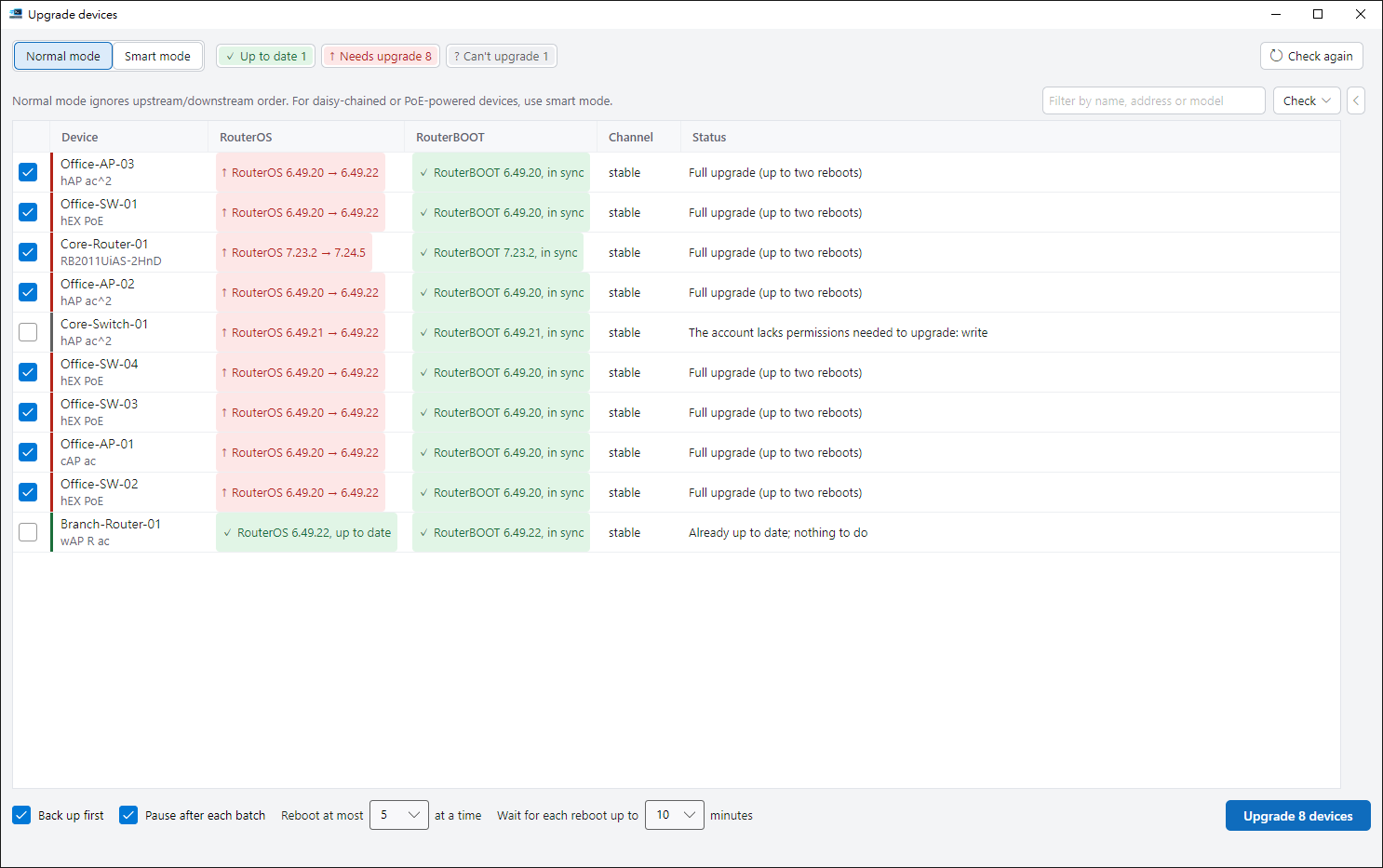
This guide covers the desktop upgrade workflow. WinBox 8291 only. Plan a maintenance window: device reboots interrupt connectivity.
Open and precheck#
Select devices on the home screen, supply a username and password for reconnecting and choose 8291. Open Upgrade devices on the right or press Ctrl+U. Prechecks start automatically; upgrades do not. Checks read versions, permissions, space, identity and pending changes, and ask devices to contact MikroTik update servers for the latest version. Allow time for that query.
Review both versions and blocked devices#
- RouterOS and RouterBOOT have separate states. Verify the target RouterOS version and RouterBOOT for full completion; RouterBOOT does not apply to CHR.
- Each device keeps its own update channel. Targets are frozen at precheck. No downgrades or RouterOS major-version changes. Devices needing only RouterBOOT synchronization can be handled separately.
- Pending changes, insufficient space, missing permissions or unverifiable identity are shown with a reason. Resolve the cause and recheck; blocked does not mean completed.
Standard mode or topology-based smart batches#
Standard mode puts selected devices in one batch and limits simultaneous reboots. Use it when devices have no upstream dependencies. Smart mode reads topology and plans downstream devices before upstream ones. Review the inferred links first. Devices with unknown order, loops or insufficient evidence are excluded with a reason.
Backup, pauses and confirmation#
Backup before upgrade and Pause after each batch are enabled by default. Backups use the configuration backup folder. Defaults allow five simultaneous reboots and ten minutes per reboot. Before starting, review versions, device counts, backup and reboot plans. A full upgrade may reboot twice. This interface offers no downgrade or automatic rollback.
Work through batches and verify results#
Each batch downloads, checks, installs and reboots, then verifies identity and versions after reconnection. Review the completed batch before continuing. A failed batch pauses even when automatic pauses are disabled. For missing devices or uncertain outcomes, investigate first, then recheck or confirm abandonment rather than treating the result as a simple failure to retry.
Stop, close and prevent conflicting writes#
Stop asks first, prevents new actions and finishes verifying reboots already in progress. The final report lists pending effects. RouterOS v6 upgrade downloads cannot be removed by RosRunner before reboot; review finish-up notes. Closing the window can leave upgrades running. Reopen it from home to return to the same session; exiting the application asks first. Batch commands, backup, PoE cycling and upgrades cannot write to the same device simultaneously.