
Feature
An AI that reads your device before it answers
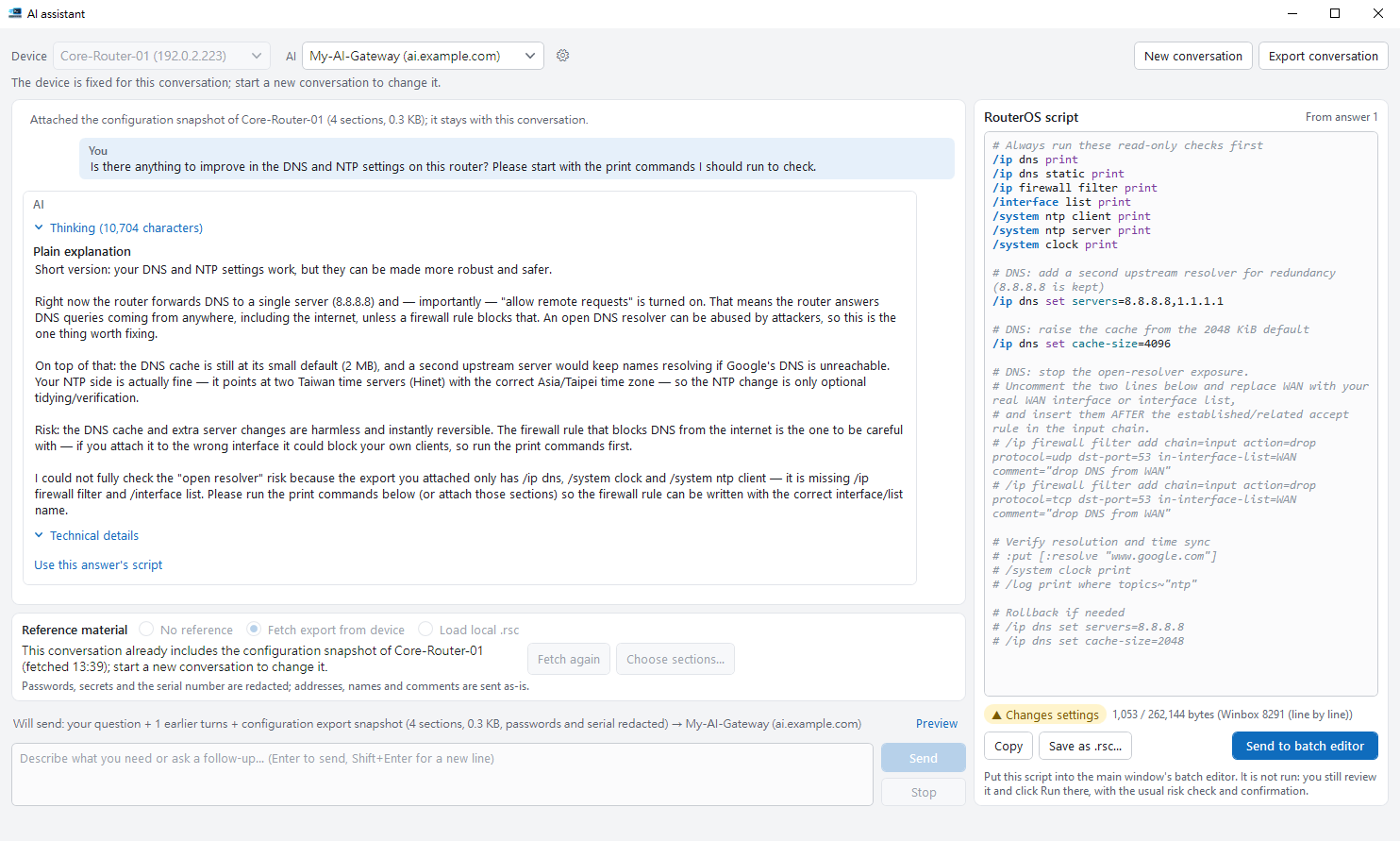
Attach a device and the AI reads its configuration first, then answers for that device — its real interfaces, addresses and RouterOS version — instead of a generic example. You get a plain explanation, the technical details and an editable script. The assistant never runs anything: you review the script and run it yourself.

The difference: it has seen this device
A general AI chat doesn't know what your network looks like, so it gives you an example to adapt. With a device attached, the answer uses that device's names, interfaces and settings.
- It sees this device: a read-only
/export, with no file created on the device; you pick which sections are sent. - It knows the version: it is told whether the device runs RouterOS 6 or 7 and writes commands for it.
- A script you can check: the script on the right can use this device's interface names and carries a risk level; when it looks right, choose Send to batch editor.
Your AI service, your key
RosRunner does not include an AI service of its own and has no built-in endpoint. You create an AI connection profile — a Base URL, a model and, for most cloud services, an API key — and the assistant sends your questions there and nowhere else. The application sends no telemetry.
This version supports one API format: OpenAI-compatible Chat Completions. It is offered by services such as OpenAI, OpenRouter, DeepSeek, Groq and Mistral, and by local runtimes such as Ollama, LM Studio and vLLM, where the model runs on your own computer and no key is needed. A profile can also name a different key header, add extra headers and a query string, point to a separate model list URL, and merge extra request fields (a JSON object) into the request body, for endpoints such as Azure OpenAI, Ollama and API gateways that expect them. Reasoning effort (sent as reasoning_effort, Low for new profiles) keeps reasoning models from thinking longer than the question needs. The services named here are examples of the format, not a tested compatibility list.
Test connection checks a profile before you rely on it, and Get model list fills in the model names the endpoint reports (opening the empty model drop-down fetches them too). You can keep several profiles and mark one as the default. The API key is stored only in Windows Credential Manager; if that is unavailable, the key is kept in memory for the current session and entered again next time.
Every answer comes in three parts
The assistant asks the model for a fixed format and splits the answer as it arrives. How closely an answer follows the format depends on the model you use.
| Part | What it contains |
|---|---|
| Plain explanation | What the change does and what effect it has, with one sentence about the risk, written for someone who does not configure routers every day |
| Technical details | Applicable RouterOS versions, prerequisites, what is changed, how to verify it and how to roll it back. Collapsed by default |
| RouterOS script | Commands only, placed in an editable script pane with syntax highlighting, a risk badge (Read-only, Changes settings or Destructive) and a byte count against the limit of the protocol selected in the main window |
If an answer reaches the output limit, is interrupted or leaves the script section open, the script is marked Incomplete. If the model ignores the format, the whole answer appears under technical details and the first code block is used as the script. With a reasoning model, a collapsed Thinking block above the answer shows its reasoning as it arrives; that reasoning is not kept in the conversation or sent back to the model. Explanations are written in the interface language; commands stay in English. Follow-up questions continue the same conversation.
Reference material: no device, or exactly one
Open the assistant with AI assistant in the buttons above the device list, or with Ctrl+I; the ▾ beside it also leads to AI connection settings…. The window is not modal, so it can stay beside the main window. Without a device, it answers general RouterOS questions. With one device, you can attach a configuration export snapshot as reference material, so the answer can use that device's interface names, addressing and RouterOS version. If several devices are ticked, you pick one of them — or none — in the window.
The snapshot is fetched live with /export: read-only, with sensitive values hidden, and no file is created on the device. This works over the connection WinBox uses (8291) and over SSH, and over API and REST on RouterOS 7 (RouterOS 6 cannot return the output over those two). Instead of fetching, you can also load a local .rsc — for example one written by configuration backup. A local .rsc can be loaded with or without a device.
The snapshot is split into sections, such as /ip firewall filter, and only the sections you tick are sent. The window shows the size and a rough token estimate, warns when a smaller model may not fit it, and will not send more than the profile's reference limit. Once attached, a snapshot stays with the conversation; to change it, start a New conversation.
From answer to run, the decision stays with you
The assistant has no run button. Its only way out is the main window's batch editor, through the same checks as any other command.
-
Review and edit
Edit the script in the script pane. The risk badge and the byte count update as you type.
-
Send to batch editor
The script is placed in the batch editor under a comment line naming the answer, the reference device and the time. It is refused — never truncated — when the pane is empty, when an incomplete script has not been edited, when it exceeds the current protocol's limit, or while a batch is running.
-
Choose how it lands
If the batch editor already holds commands, you choose Replace or Append. If the main window's selection is not just the reference device, you choose between selecting only that device and keeping the current selection.
-
Run it yourself
Nothing runs until you click Run in the main window. The usual risk classification and confirmation apply, and destructive commands still require typed confirmation.

Next: using the assistant in practice
The documentation covers setting up an AI connection profile, choosing reference material, exactly what is sent, reading an answer and sending the script to the batch editor.